
Ways to use MeetMi
Updated
MeetMi is an AI meeting assistant for Mac and iPhone. It transcribes the meeting on your device, and with a subscription it also posts short advice cards while people are still talking, keeps a running analysis and writes the notes when you end the meeting.
Use it in team meetings, negotiations, sales calls, town halls, one-on-ones, retrospectives and interviews, for videos and lectures, for meetings in another language, and on iPhone in the room. No bot joins the call.
MeetMi has eight built-in meeting types plus Custom (AGENTS.md). The type you pick changes what the live advice looks out for, when it stays quiet, and which sections the background analysis has. Whatever the type, the notes have the same four sections: Overview, Discussion, Decisions and Action Items.
What to set up before your first meeting
- The language MeetMi writes in. Check it in Settings → Meeting & Language → “MeetMi writes in”. Up to Mac 1.0.1 and iPhone 1.0, a new install writes in Simplified Chinese; from Mac 1.0.2 and iPhone 1.0.1 it starts on “Follow System”: English, or Simplified Chinese when that is the device’s first language.
- A folder of material. Put the briefs, contracts, price lists or your own notes for the meeting in one folder and choose it in Workspaces.
- The meeting type. Pick it before you press Start Meeting.
More detail: writing languages, file limits and formats
That language covers the advice, the analysis and the notes, and you can choose from 10 writing languages. On iPhone, “MeetMi writes in” is on the Meeting tab.
MeetMi looks at the first 40 files it finds in the folder, subfolders included (files it can’t read still count toward the 40). It reads Markdown, plain text, CSV, TSV, JSON, YAML, PDF, Word (.docx), Pages, HTML and RTF. For scanned PDFs and images, turn on “OCR scans and images” in Settings → Documents & Data (on iPhone, the Documents tab).
The meeting type comes from the Meeting type menu. It stays fixed from Start until the notes are written.
The live advice cards don’t open your files themselves, except AGENTS.md: figures in your other files reach the cards only after the background analysis has found them.
More detail: how your folder reaches the advice cards
Your AGENTS.md goes with every card. The analysis updates every 3 minutes by default (1 to 5 minutes in Settings), so keep Deep Analysis on when the folder matters, and ask in “Discuss with MeetMi” when you need a figure right away.
MeetMi skips the notes it saved itself when it reads the folder, so for a follow-up meeting, write down what was agreed in your own file or in AGENTS.md.
Which meeting type should I pick?
| Situation | Meeting type |
|---|---|
| A team meeting or stand-up | Team Meeting (the default) |
| A negotiation or a renewal | Negotiation |
| A sales or pre-sales call with a customer | Customer / Pre-sales |
| A company all-hands | Town Hall |
| A one-on-one | One-on-One |
| A project review | Retrospective |
| A hiring interview | Interview |
| A video, lecture or podcast | Video / Lecture / Podcast |
| Anything else, on your own terms | Custom (AGENTS.md) |
Which audio setting should I use?
| Where the sound comes from | Audio capture |
|---|---|
| A call on your Mac | System audio + microphone (the Mac default) |
| People in the room, with a Mac | Microphone only |
| People in the room, with an iPhone | Microphone only (the iPhone default) |
| A video or talk playing on your Mac | System audio only |
| A lecture or talk in the room, with a Mac | Microphone only (set it after you pick Video / Lecture / Podcast) |
| A video or online lecture playing on your iPhone | System audio only, from version 1.0.1 on iOS 27 |
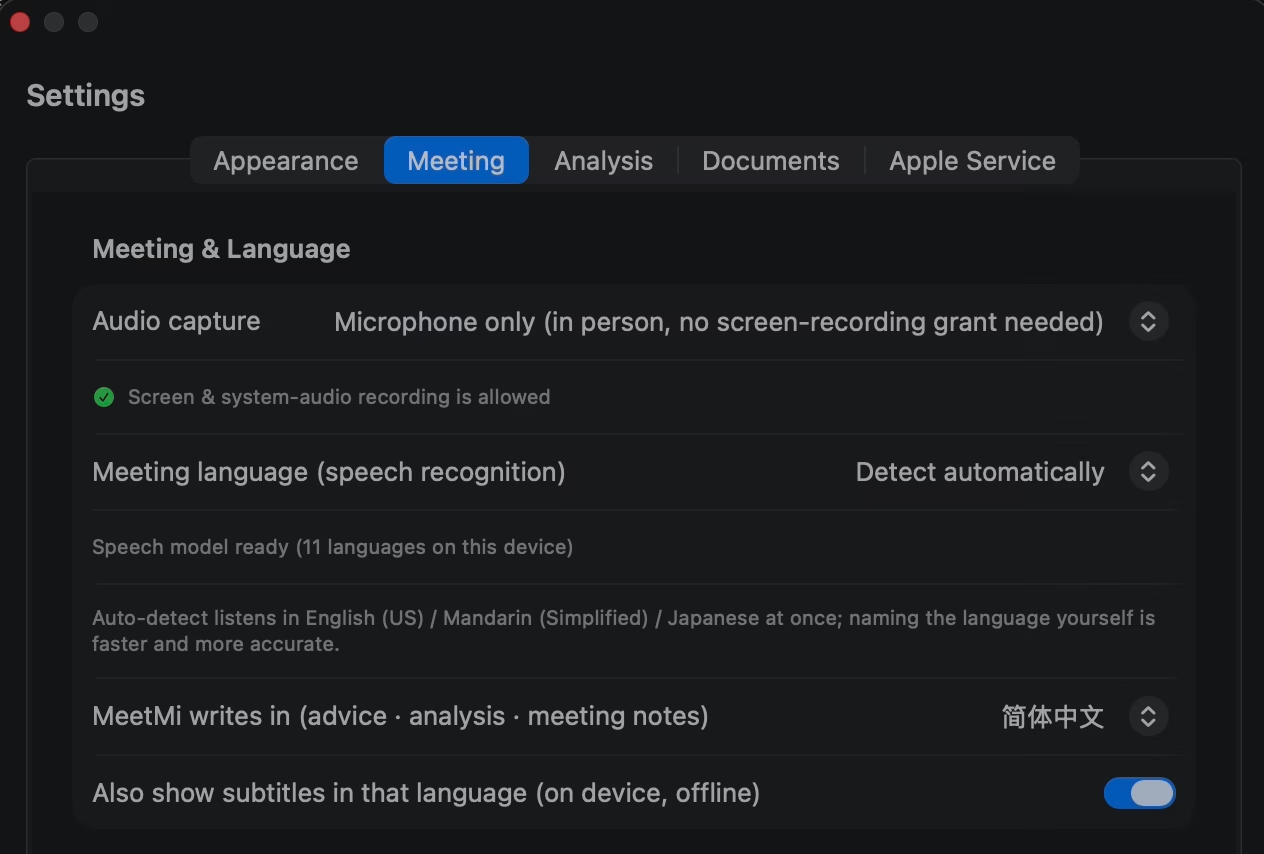
Set it before the meeting in Settings → Meeting & Language → Audio capture. On iPhone, the setting is Settings → Meeting → Audio capture, and it’s there only from version 1.0.1 on iOS 27; otherwise the iPhone always listens through the microphone.
More detail: switching mid-meeting and the Mac permission
During a meeting on a Mac, use the Microphone and System Audio switches in the Listening menu or the window toolbar instead; switching one doesn’t interrupt the other.
On a Mac, system audio needs macOS’s Screen & System Audio Recording permission; you can decline it and use the microphone alone. On a call, MeetMi hears whatever your Mac plays, whichever app it comes from, and no bot joins the call.
Team meetings and stand-ups
In a Team Meeting, MeetMi flags blockers and who needs to clear them, turns “I’ll do it” into an action item, and notices when an issue comes up a second time.
Set it up: Team Meeting is the default type. Put the project plan and your own notes from the last meeting in the folder.
More detail: owners, dates and the analysis sections
An action item gets a date when one is said out loud. MeetMi doesn’t recognise voices, so it gets an owner only when a name is said out loud.
The analysis has four sections: Progress and blockers, Decisions, Actions and owners, and Recurring issues. For a call, leave the Mac on System audio + microphone.
Negotiations and renewals
In a Negotiation, MeetMi names tactics such as anchoring, can point out when the other side contradicts what they said earlier, and flags it when something you’ve just said commits you on price, timing or scope.
Set it up: Choose Negotiation, and write your limits in AGENTS.md so they reach the cards directly.
More detail: your limits, past deals and the analysis sections
Put the contract draft, your pricing notes and earlier deals in the folder; your limits can also go in a short file of their own. If your folder holds your limits and past deals, the background analysis finds them and sets them against the numbers the other side names, and the next cards use that. For numbers that are only in your other files, keep Deep Analysis on, since that’s how the cards learn them.
The analysis has four sections: Topics and progress, Positions, Open issues, and Strategy observations.
Sales and customer calls
In a Customer / Pre-sales meeting, MeetMi helps you answer with exact figures from your material, sorts each request into “supported”, “on roadmap” or “unsupported”, and flags over-promises such as custom work, early delivery or a special price.
![MeetMi’s advice cards during a recorded talk, each with a timestamp: points tagged [Risk], [Advice] and [Fact], with key phrases such as “survivorship bias”, “copied the Mac” and “hindsight bias” highlighted.](/assets/img/mac-cards.avif)
Set it up: Choose Customer / Pre-sales and put the price list, service levels, integration list and roadmap in the folder.
More detail: exact figures, Keep on Top and the analysis sections
Once the background analysis has found the price, service level or delivery time in your material, the cards give it to you when the customer asks. If a figure hasn’t shown up yet, type the question into “Discuss with MeetMi”: it usually checks your folder before it answers.
On a Mac, switch to Compact Window with the advice showing and turn on Keep on Top, and the cards stay above your other windows.
The analysis has four sections: Customer needs and concerns, Our answers and commitments, Open issues, and Advancement strategy.
Town halls and all-hands
At a Town Hall, MeetMi notes the decisions and dates that are announced, explains acronyms and project names, points out questions that were dodged, and suggests questions for the Q&A.
Set it up: Choose Town Hall and add your team’s targets or plan to the folder.
More detail: your targets and the analysis sections
With your team’s targets in the folder, the analysis compares the results presented against them. If you’re watching the all-hands on your Mac and won’t speak, System audio only keeps your microphone off.
The analysis has four sections: Announced decisions and changes, Relevant to me, Unanswered questions, and Messaging and signals.
One-on-ones
In a One-on-One, MeetMi notices concern or hesitation and suggests how to respond, keeps what is said about career, pay and performance word for word, and tracks requests as follow-ups.
Set it up: Choose One-on-One and put a note of what you agreed last time in the folder.
More detail: last time's promises, and the analysis sections
If your folder has a note of what was promised last time, MeetMi checks whether those promises were kept. In the room, an iPhone on the table listening through its microphone is enough.
The analysis has four sections: Their concerns, My responses, Commitments and follow-up, and Relationship signals.
Retrospectives
In a Retrospective, MeetMi separates what happened from what people think caused it, flags improvements nobody has taken on, and spots causes that keep coming back.
Set it up: Choose Retrospective and put the original plan and a CSV export of the tickets or timeline in the folder.
More detail: plan versus reality and the analysis sections
MeetMi compares the plan in your folder with what actually happened. Add your own notes from earlier reviews if you want MeetMi to spot repeats.
The analysis has four sections: What happened, Causes and disagreements, Improvements, and Open issues.
Hiring interviews
In an Interview, MeetMi’s background analysis sets what the candidate says against the CV and job description in your folder, and the live cards suggest a follow-up question when an answer is vague. MeetMi won’t score or rank the candidate, or say whether to hire.
Set it up: Choose Interview, put the CV, the job description and your evaluation criteria in the folder, and tell the candidate you’re using MeetMi.
More detail: your criteria, scanned CVs and the analysis sections
The analysis tracks which of your criteria are still open, and the cards remind you of what you haven’t covered yet. MeetMi doesn’t judge the candidate: that call stays with you.
Without criteria, Evaluation progress just says none were found. A scanned CV needs OCR turned on.
The analysis has four sections: Claims and examples, Differences from source material, Follow-up questions, and Evaluation progress.
Videos, lectures and podcasts, with a fact check
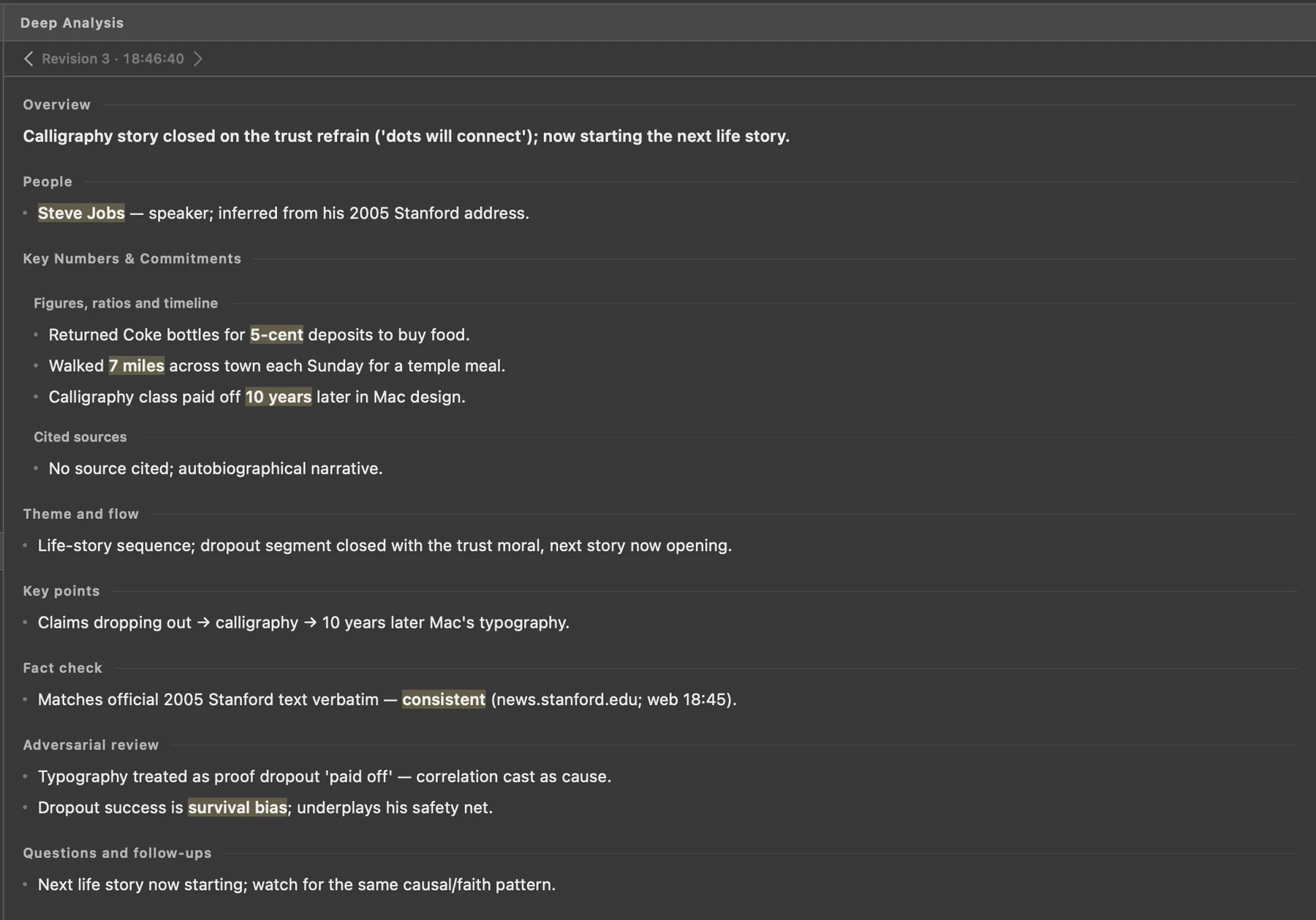
For a Video / Lecture / Podcast, MeetMi treats the session as one-way listening: the cards explain terms, flag numbers and claims given without a source, and point out leaps in logic. No other meeting type has a fact check or an adversarial review in its analysis.
Set it up: On a Mac, pick this type before you press Start Meeting, and MeetMi switches to System audio only.
More detail: analysis sections, web search, audio on Mac and iPhone
The analysis has five sections: Theme and flow, Key points, Fact check, Adversarial review, and Questions and follow-ups. The live cards never search the web; if you turn on web search, which has its own consent and uses extra credits, the background analysis can look claims up and cite the pages it used.
On a Mac: System audio only needs macOS’s Screen & System Audio Recording permission and won’t start without it; after you allow it, quit and reopen MeetMi. Picking another type before your next meeting puts your previous setting back, unless you changed the switches yourself in between. System audio is everything the Mac plays, so pause other videos and music. For a lecture or talk in the room, set Settings → Meeting & Language → Audio capture to Microphone only after you pick the type, or MeetMi won’t hear the room.
On iPhone: from version 1.0.1, on iOS 27, set Settings → Meeting → Audio capture to System audio only, and MeetMi transcribes what the phone itself plays, such as a video or an online lecture. Each meeting starts with Apple’s sharing sheet: choose the entire screen. MeetMi keeps only the sound, and if you close the sheet, the meeting doesn’t start. System audio can’t hear calls. On iPhone, the meeting type doesn’t change the audio setting.
Following a meeting that isn’t in your language
MeetMi can listen in one language and write in another. An English meeting is transcribed in English, while the advice, analysis and notes come in Chinese, Japanese or another of the 10 writing languages.
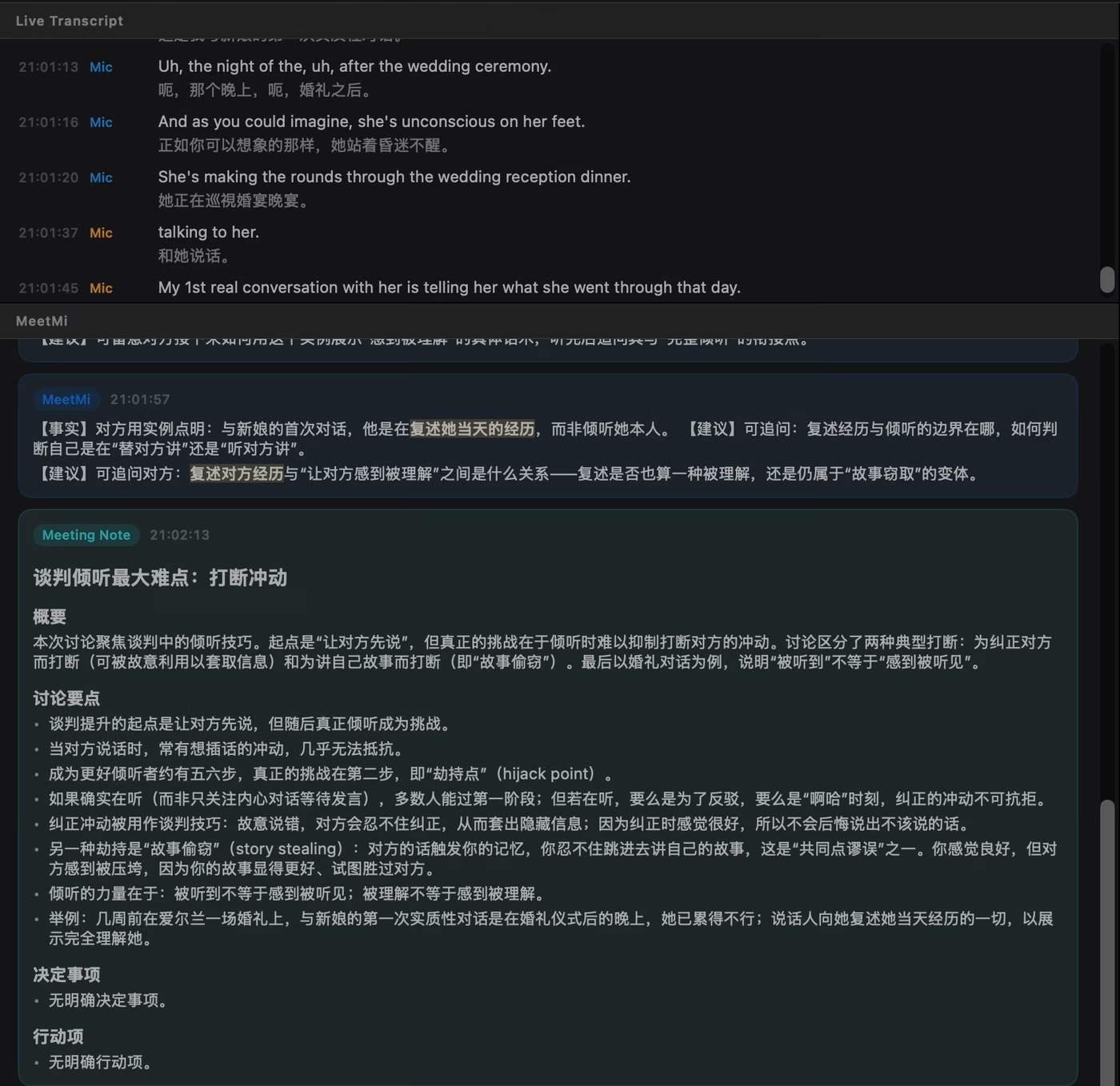
Set it up: In Settings → Meeting & Language (on iPhone, the Meeting tab), set “Meeting language (speech recognition)” to the language being spoken and “MeetMi writes in” to yours.
More detail: subtitles, language detection and working offline
This helps when you follow English meetings as a second language. When the two languages differ, each transcript line can also show a subtitle in your writing language underneath, translated on your device by Apple’s Translation. Subtitles are on by default, use no credits, and appear only for language pairs that Apple’s Translation supports.
Transcription offers 13 options covering 10 languages. Left on “Detect automatically”, MeetMi chooses only among English, Mandarin and Japanese. On a call with headphones, name the language yourself: while it’s detecting, MeetMi listens only to your microphone, so the other side isn’t transcribed until you’ve spoken and MeetMi has settled on the language.
A few limits to know:
- Each meeting is transcribed in one language. If people switch languages, MeetMi still transcribes everything as the meeting’s language.
- Subtitles go only into your writing language, and there are none when both are the same language, such as a Mandarin meeting written up in Traditional Chinese.
- The writing language is locked while a meeting runs.
- If a language’s speech model isn’t on your device yet, it downloads once, which needs an internet connection. After that, transcription works offline.
- The first time you use subtitles, Apple may show its own prompt to download the translation languages. After that, subtitles work offline too. If Apple can’t translate a language pair on the device, MeetMi shows a notice and leaves subtitles off; transcription and advice carry on.
In-person meetings and lectures on iPhone
MeetMi for iPhone is made for meetings in the room. Put the phone on the table and press Start Meeting: it listens through the microphone and keeps transcribing when you lock the screen or switch to another app.
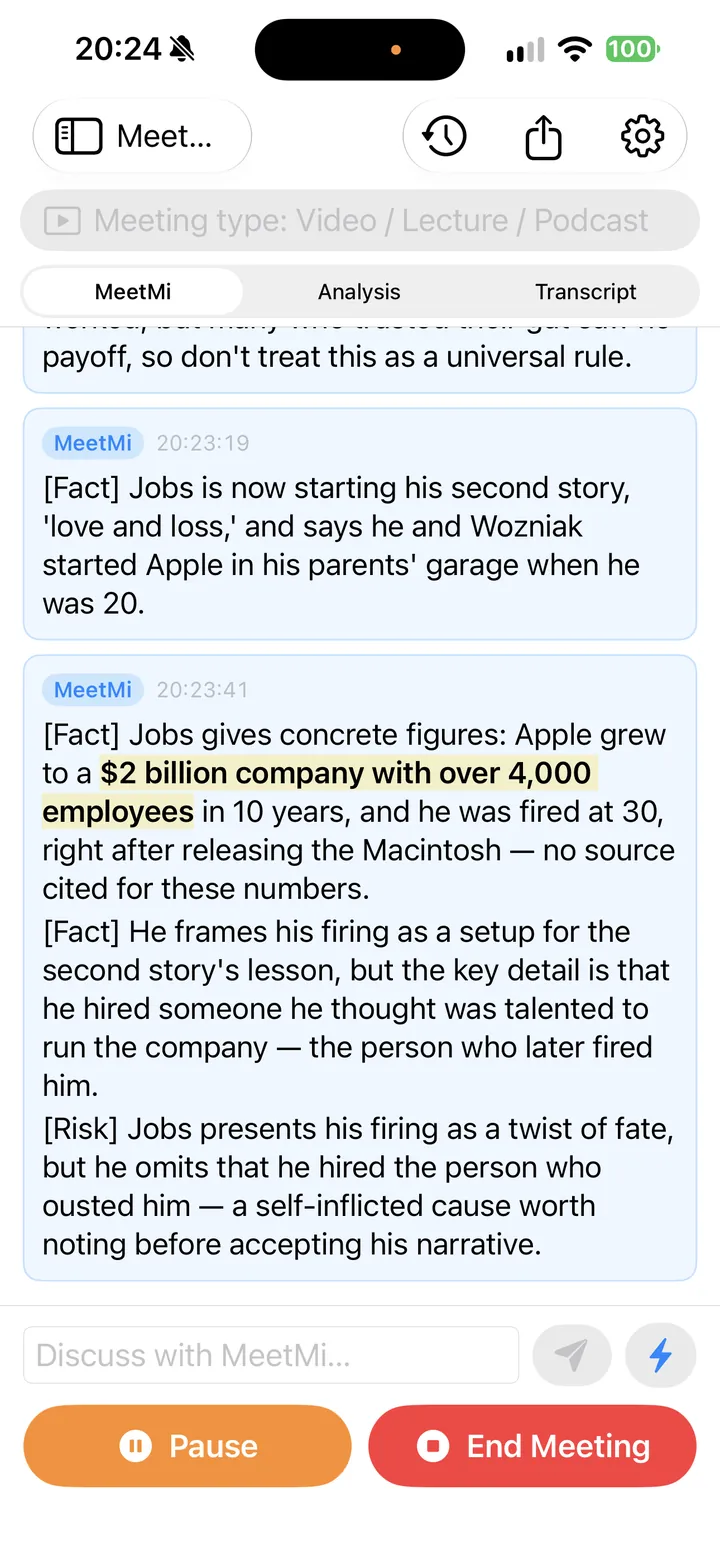
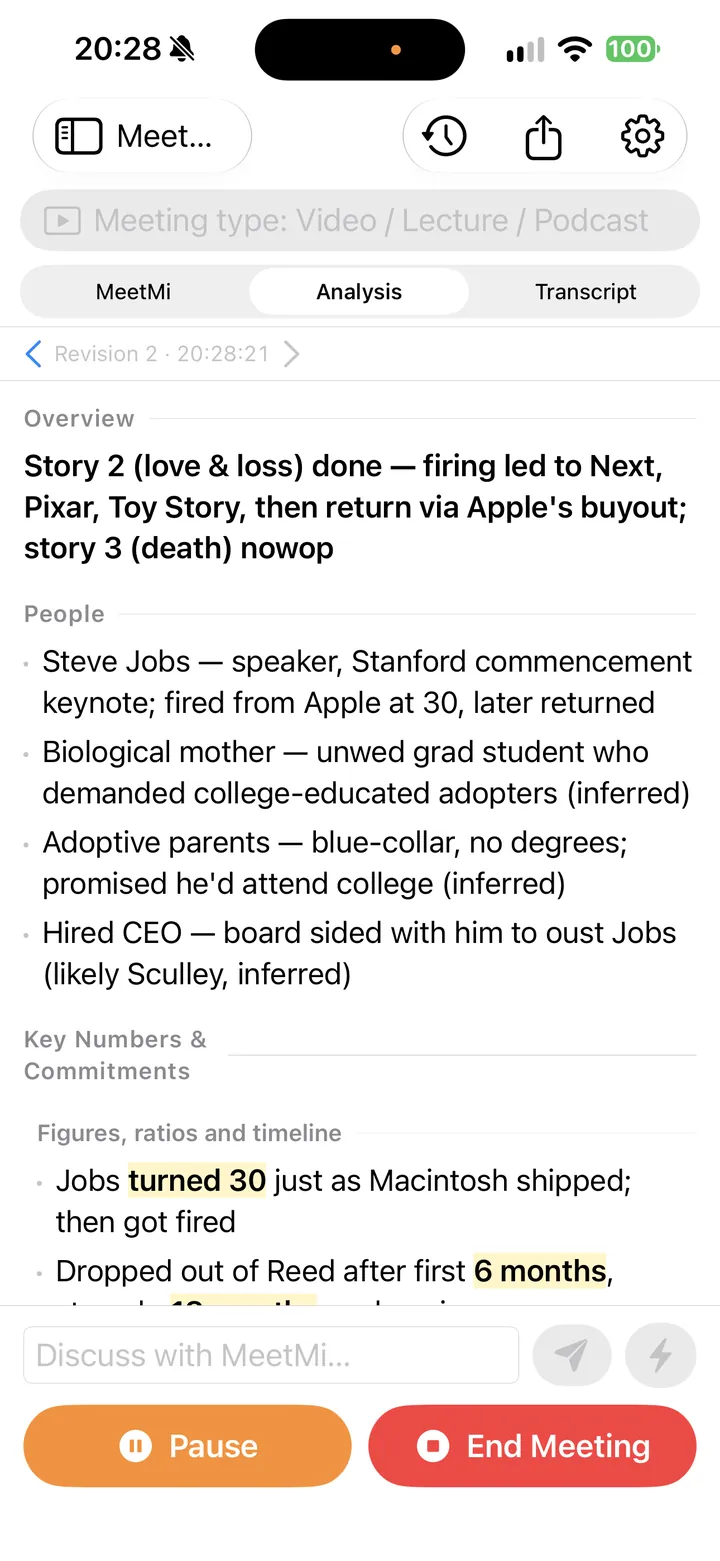
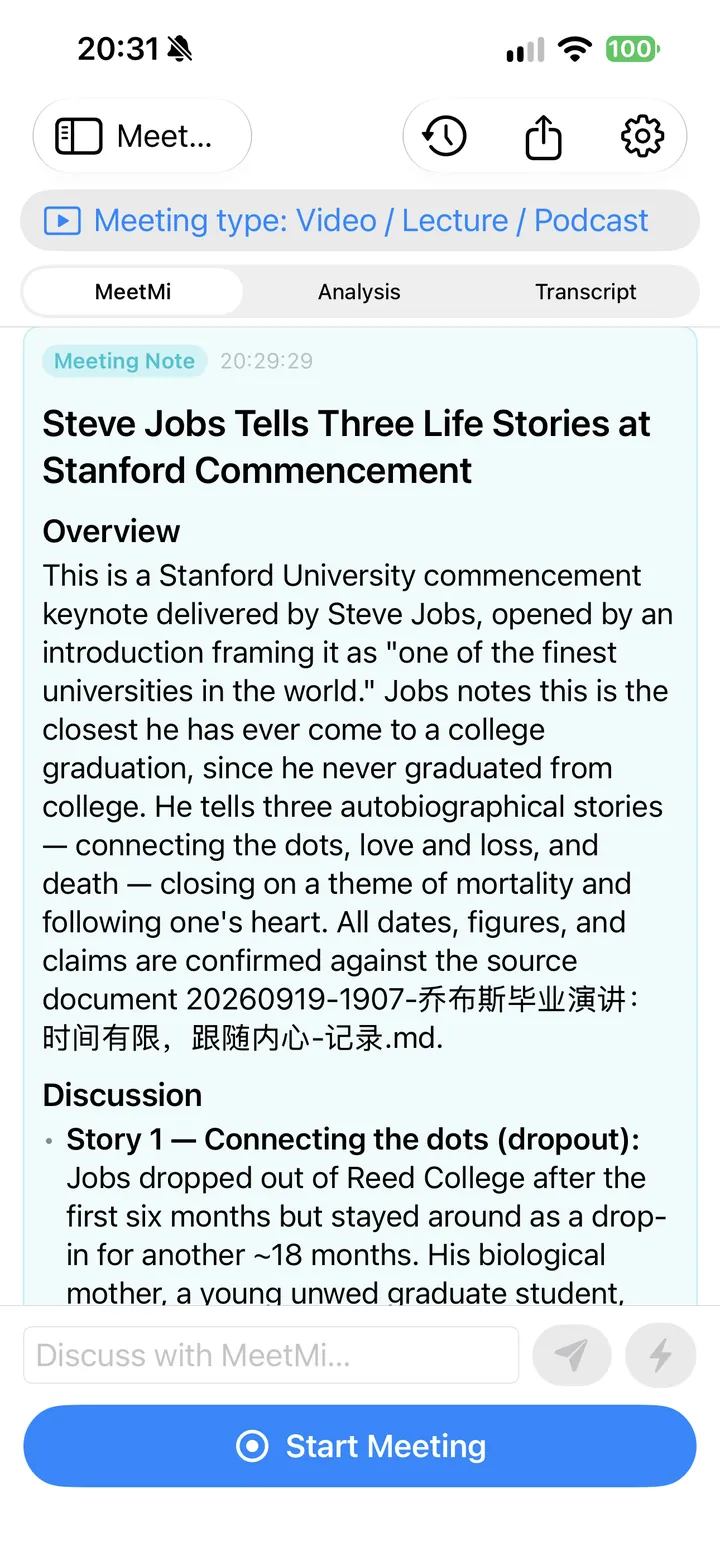
Set it up: In Workspaces, choose the folder from the Files app, and pick the meeting type before you press Start Meeting.
More detail: lectures in the room, and online calls
Live advice, analysis and notes work as they do on the Mac. The microphone is the iPhone’s default. For a lecture or talk in the room, choose Video / Lecture / Podcast: on iPhone the meeting type doesn’t change the audio, so MeetMi keeps listening through the microphone and adds the lecture analysis, with its fact check.
For an online call, use MeetMi on a Mac instead: iPhone system audio can’t hear calls, while the Mac hears whatever it plays.
Your own rules with Custom and AGENTS.md
An AGENTS.md file in your folder is your standing instruction to MeetMi. Live advice, the analysis and the answers to your typed questions follow it, and where it disagrees with the meeting type’s built-in instructions, AGENTS.md wins. It doesn’t change how the notes are written.
More detail: length limits, Custom, and drafting one with AI
- With a built-in type, AGENTS.md adds to the type’s own instructions. The two share one length limit, with the type’s instructions first, so only about the first 2,400 to 3,600 characters of AGENTS.md get through, depending on the type. Keep it short and put what matters most at the top.
- With Custom (AGENTS.md), there is no built-in template: your file is the whole instruction, so the folder must have one, and about 6,000 characters of it are used. The analysis sections come from the “Analysis layout” section in the file.
- To write one, open a folder that has no AGENTS.md yet and choose “Generate AGENTS.md with AI…”. Fill in four short fields (the situation, your role, your purpose and goal, your principles and limits), and MeetMi drafts the file from them and from your documents, Analysis layout section included. You can edit it in the app afterwards. Drafting uses cloud AI and credits, and doesn’t search the web.
Keeping your notes as Markdown files in your own folder
When MeetMi writes the notes at the end of a meeting, it saves them as a Markdown (.md) file with the full transcript appended, in a Meetings subfolder of the folder you picked.
More detail: what the notes need, and exporting
Notes need cloud AI and at least three transcript lines. Without a folder, the file stays in MeetMi’s own storage. Either way, you can export any meeting’s notes, analysis, advice and transcript as Markdown or plain text.
What MeetMi doesn’t do
- MeetMi doesn’t name speakers.
- MeetMi keeps no audio, only the text.
- MeetMi doesn’t join your call, start by itself or connect to your calendar.
- Without a subscription, transcription, subtitles, history and export still work.
More detail: transcript labels, privacy and what needs a subscription
Each transcript line is tagged Mic or System, by where the sound came from. Sound goes straight into Apple’s on-device speech recognition and only the text is kept. See what is sent to the cloud and the privacy policy.
A meeting begins when you press Start Meeting. Advice, analysis, answers to your questions and meeting notes use cloud AI, which needs a subscription or trial with credits left, your consent and an internet connection. See pricing.
Let the people you meet with know you’re using MeetMi: rules on transcription differ by place and workplace.
For the whole path from Start to notes, read How MeetMi works. For how MeetMi differs from note takers that send a bot into the call, read How MeetMi compares.