
How MeetMi works
Updated
MeetMi is an AI meeting assistant for Mac and iPhone that listens and transcribes on your own device, and no bot joins the call. With the subscription, and once you agree, MeetMi sends text, never audio, to cloud AI for live advice, a running analysis, answers to your questions and meeting notes.
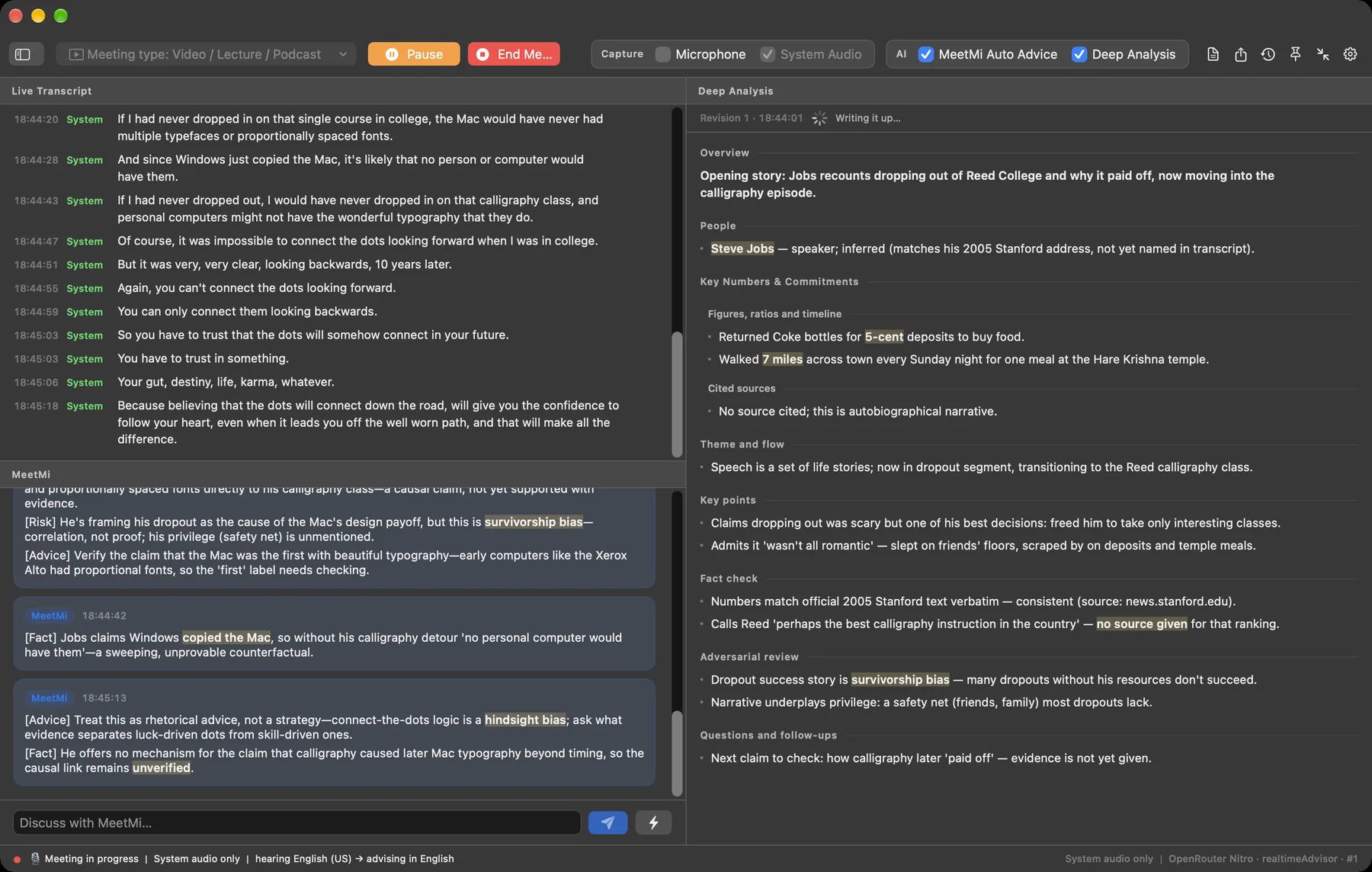
Unlike an AI note taker that only writes notes after the meeting, MeetMi is built to help while people are still talking. This page follows one meeting in order. See also Ways to use MeetMi and how MeetMi compares with other AI note takers.
In short:
- Set up: meeting type, meeting language, the language MeetMi writes in and, if you like, a folder of your own material.
- Start Meeting: MeetMi listens through the microphone and, by default on a Mac, to the sound the Mac plays.
- On-device transcription: Apple’s speech recognition turns speech into text; audio is never saved.
- Live advice (subscription): short cards while people talk, at most every 20 seconds by default.
- Background analysis (subscription): a running picture of the meeting, every 3 minutes by default when something new was said.
- End Meeting: MeetMi saves the meeting to your history and, with the subscription, writes Markdown notes: Overview, Discussion, Decisions, Action Items.
Before you start
What does MeetMi need, and what works without a subscription?
MeetMi for Mac needs macOS 26 or later on a Mac with Apple silicon (M1 or newer), and MeetMi for iPhone needs iOS 26 or later. MeetMi is free to download from the App Store, and without a subscription you can still start meetings, with on-device transcription, subtitle translation, meeting history and export, on Mac and iPhone.
More detail: Intel Macs, iPad, price and free trial
MeetMi does not run on Intel Macs. There is no iPad layout: an iPad runs the iPhone app in compatibility mode, with the microphone only.
The one thing to buy is a monthly subscription. It adds the cloud AI: live advice, background analysis, answers to your questions and meeting notes. New subscribers start with a one-week free trial that includes 1,000 credits, and after that each month includes 4,500 credits. The price is $9.99 a month in the United States, and the App Store shows your local price. See pricing.
The first-run screen: two choices
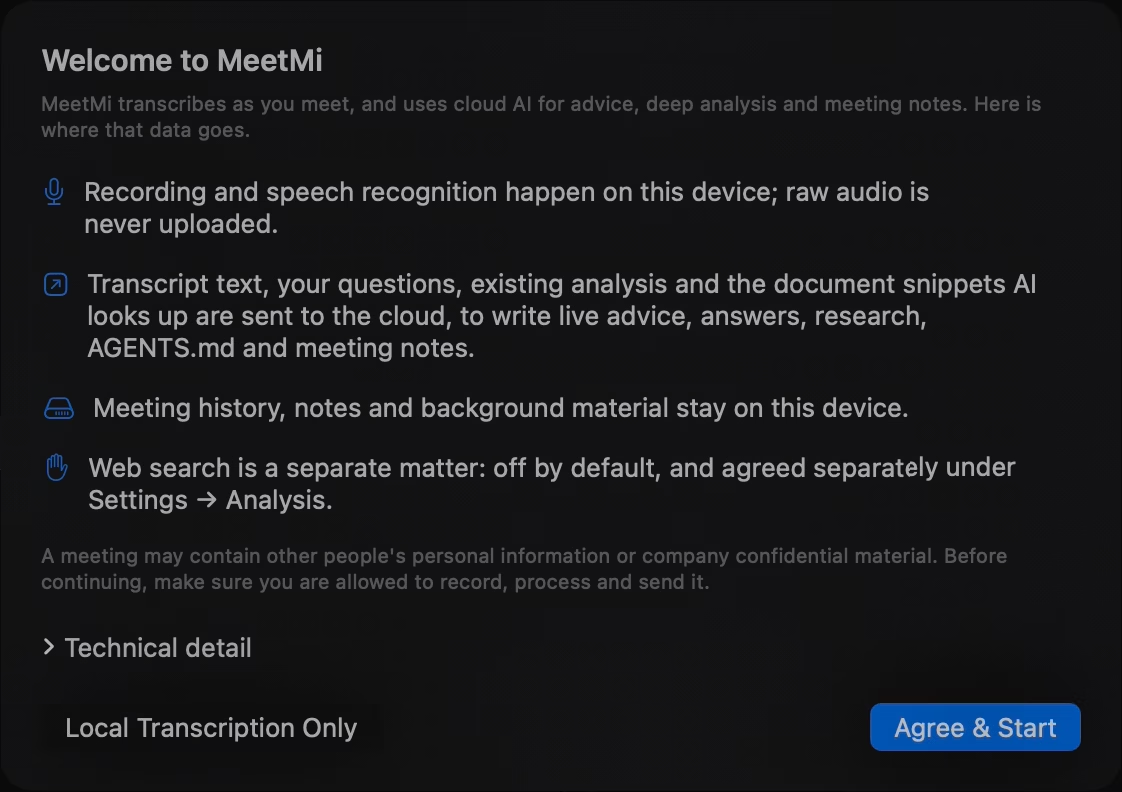
The first time you open MeetMi, one welcome screen shows where your data goes. Agree & Start also accepts the cloud AI data notice; with Local Transcription Only, nothing goes to cloud AI. Either button lets you in.
More detail: web search and changing your mind
Web search is never switched on from this screen. You can agree to cloud AI later, or withdraw, in Settings. On iPhone 1.0, if cloud AI is still off after you subscribe, open Settings → Apple Service and press Read & Agree under Cloud AI. From iPhone 1.0.1, as on the Mac, pressing Start Meeting shows the data notice first when you are subscribed but haven’t agreed.
Speech models download once
MeetMi transcribes with Apple’s on-device speech models. When the app opens, MeetMi downloads any model your settings need that is missing, and you need an internet connection for this one-time download.
More detail: which models, and skipping the download
MeetMi checks for the models your settings need and shows a progress dialog while it downloads. With automatic language detection, which is the default, that can be up to three models: English, Mandarin and Japanese. If you skip the download while offline, a meeting in that language can’t start. A language you choose later is downloaded when its first meeting starts.
Does MeetMi use my own documents?
Yes, if you give MeetMi a folder of your own material: briefs, specs, contracts, your own notes from earlier meetings. MeetMi indexes the folder on your device, and the AI searches it and reads only the passages it needs.
More detail: file types, the 40-file limit and AGENTS.md
MeetMi skips the meeting notes it saved there itself. In the app this folder is called a workspace. On iPhone you pick it through the Files app.
When the folder has material, background analysis, meeting notes and most of your questions check it before they answer. Apart from your AGENTS.md, live advice does not open your files itself. It picks up what the background analysis found there.
MeetMi reads Markdown, plain text, CSV, TSV, JSON, YAML, PDF, Word (.docx), Pages, HTML and RTF. Scanned PDFs and images need the optional OCR setting. Excel, PowerPoint, Keynote, Numbers and older .doc files are not read. MeetMi reads up to 40 files per folder, subfolders included, and unsupported files count toward that.
An optional AGENTS.md file in the folder is your standing instruction to MeetMi. Live advice, the analysis and your questions follow it, and it takes priority over the meeting-type template. It does not change how the meeting notes are written. If the folder has no AGENTS.md, Generate AGENTS.md with AI… drafts one from a short form (the situation, your role, your goal and your limits) plus your files. Drafting uses cloud AI and credits.
Choose the meeting type
MeetMi has eight built-in meeting types: Team Meeting, Negotiation, Customer / Pre-sales, Town Hall, One-on-One, Retrospective, Interview, and Video / Lecture / Podcast. The type changes what live advice watches for and which sections the analysis keeps.
More detail: Custom, when the type is fixed, and audio on a Mac
There is also Custom, which follows your AGENTS.md alone, so the folder needs one. You pick the type before you start, and it stays fixed until the notes are written. Ways to use MeetMi goes through the types.
On a Mac, picking Video / Lecture / Podcast switches the audio to system audio only. Picking another type puts back the mode you had, unless you changed the audio switches yourself in between.
Can MeetMi listen in one language and write in another?
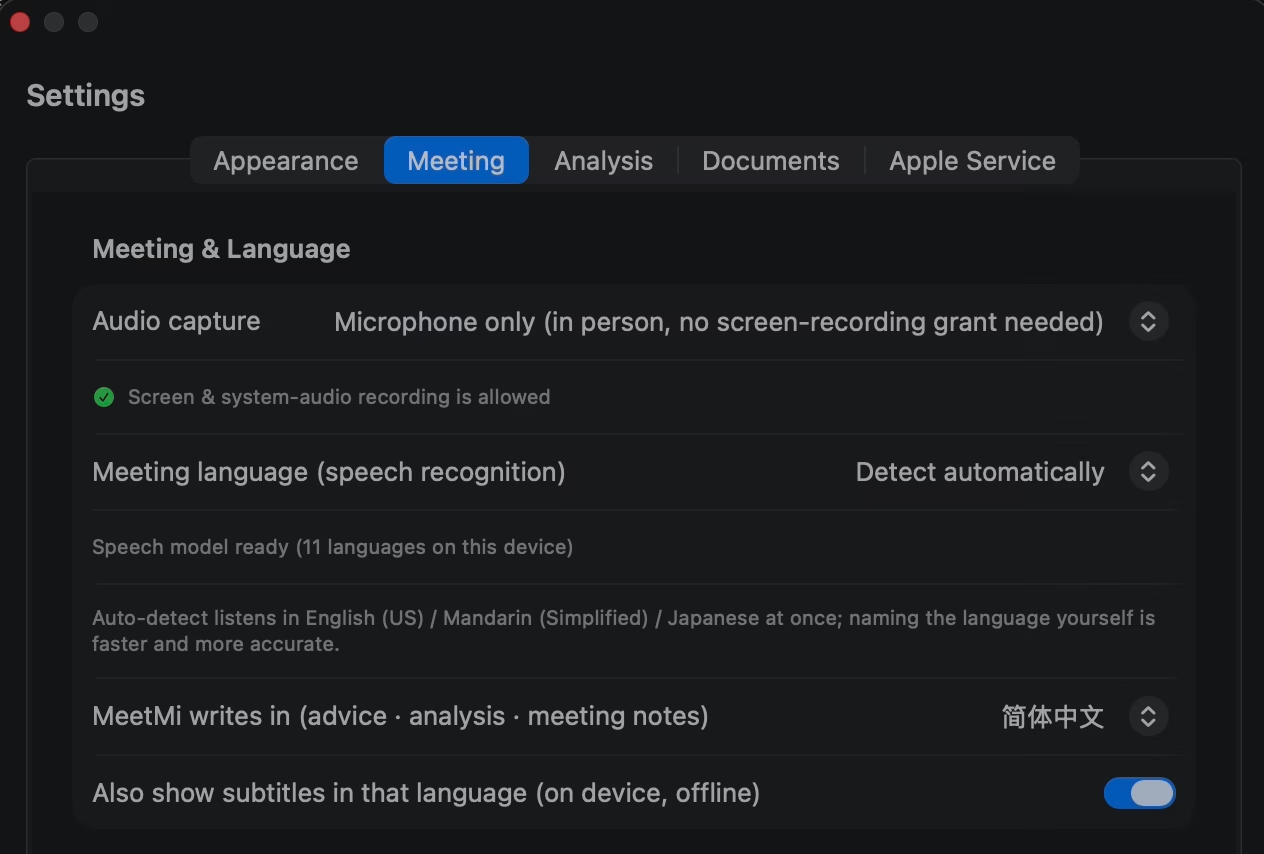
Yes. MeetMi has two language settings: the meeting language, which people speak and MeetMi transcribes, and MeetMi writes in, the language of the advice, analysis, notes and answers. A new install starts in Simplified Chinese or English, depending on the version and your device’s language, so check MeetMi writes in before your first meeting.
More detail: where the settings are, the 10 writing languages, and when changes apply
Both settings are in Settings → Meeting & Language (on iPhone, the Meeting tab).
- Meeting language. The default, Detect automatically, chooses only among English, Mandarin and Japanese. For any other language, or to skip the wait, choose it here. Naming the language yourself is faster and more accurate.
- MeetMi writes in. It offers 10 languages: English, Simplified Chinese, Traditional Chinese, Japanese, Korean, German, French, Spanish, Portuguese and Italian. Up to Mac 1.0.1 and iPhone 1.0, a new install writes in Simplified Chinese. From Mac 1.0.2 and iPhone 1.0.1, the first choice in the list is “Follow System”, and a new install starts on it: English, or Simplified Chinese when that is the device’s first language. Updating to those versions moves an install that is on Simplified Chinese, the old default, to Follow System; any other language stays as it was.
The two can differ: MeetMi can hear an English meeting and write the advice and the notes in Chinese, for example. While a meeting runs, including when you pause and resume, MeetMi keeps the languages it started with. A change to the meeting language applies from the next meeting, and the writing language stays locked until MeetMi has finished wrapping up the meeting. When you continue a past meeting, MeetMi uses the meeting language set at that point, so Detect automatically listens for the language again. The app’s own interface language, English or Simplified Chinese, is a separate setting in Settings → Appearance.
Does MeetMi start or join meetings by itself?
No. A MeetMi meeting starts only when you press Start Meeting, or Continue on a past meeting. MeetMi has no calendar connection, and it never detects, starts or joins a meeting by itself.
More detail: the data notice at Start Meeting
On a Mac, if you are subscribed but haven’t agreed to cloud AI yet, pressing Start Meeting shows the data notice first, and you can still choose Local Transcription Only for that meeting. iPhone does the same from version 1.0.1.
How does MeetMi hear the meeting without joining the call?
MeetMi listens on your own device instead of joining the call. On a Mac, by default, MeetMi hears the microphone and everything the Mac plays, including the other people on an online call; on iPhone, MeetMi listens through the microphone by default.
How MeetMi hears a meeting on a Mac
MeetMi for Mac has three audio modes: system audio + microphone (the default), microphone only, and system audio only. System audio means everything the Mac plays, from any app, so there is nothing to install in your meeting app.

More detail: permissions, windows and shortcuts
Pick the mode before a meeting in Settings → Meeting & Language → Audio capture. System audio is mixed together (MeetMi’s own sound excluded). On an online call, that includes the other people’s voices, whichever app the call is in, so no bot joins the call. Because MeetMi hears the whole mix, notification sounds, music or a second video playing at the same time are transcribed too.
During a meeting, change the audio with the Microphone and System Audio switches in the Listening menu or the window toolbar. Switching one does not interrupt the other.
Permissions. To hear system audio, macOS asks for its Screen & System Audio Recording permission, found in System Settings → Privacy & Security. After you tick MeetMi there, quit and reopen the app for system audio to start working. You can decline. In the default mode the meeting then carries on with the microphone alone and shows a warning. Microphone only never asks for it. System audio only is the one mode that can’t start without it. The microphone permission is needed in the default mode and in Microphone only, and if you deny it those meetings don’t start. System audio only never turns the microphone on.
Windows. MeetMi keeps listening while another app is in front. Closing the window does not end the meeting: bring it back from the Dock or with Window → MeetMi Window (⌘0). You can also shrink MeetMi to a compact window about a third of the screen wide, which shows one thing at a time (advice, analysis or transcript), and pin it above your other windows.
How MeetMi hears a meeting on iPhone
MeetMi for iPhone listens through the microphone by default, and a meeting you have started keeps transcribing when you lock the screen or switch to another app. From version 1.0.1, on iOS 27, MeetMi can transcribe what the phone itself is playing instead, but it cannot hear calls.
More detail: system audio on iPhone, calls and iPad
For a meeting in the room, put the phone on the table.
On an iPhone running iOS 27, you can set Settings → Meeting → Audio capture to System audio only. MeetMi then transcribes what the phone itself is playing, such as a video or an online lecture. Each of these meetings starts with Apple’s own sharing sheet, where you choose the entire screen. MeetMi keeps only the sound and throws the picture away as it arrives. If you dismiss the sheet, the meeting doesn’t start.
iPhone system audio cannot hear calls. In testing, a video call came through only as silence, and no error was shown. On iOS 26, and on iPad, MeetMi uses the microphone only.
Does MeetMi know who is speaking?
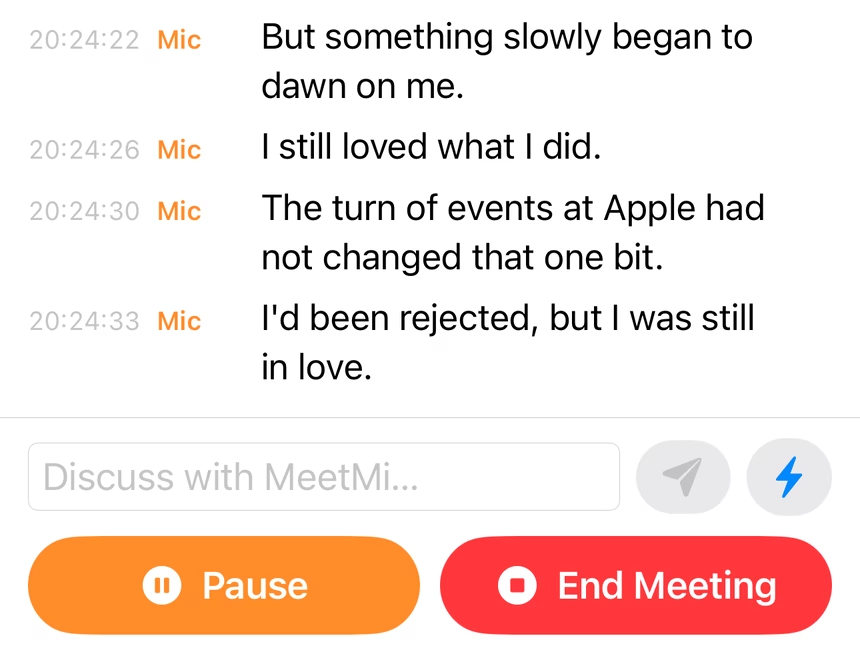
No. MeetMi does not identify or name speakers: each transcript line is tagged only with where the sound came from, Mic or System. The people listed in the analysis come from names said aloud or found in your documents, not from voice recognition.
Does MeetMi record audio, and how does on-device transcription work?
No. MeetMi never saves or uploads raw audio: the sound goes straight into Apple’s on-device speech recognition, and only the text is kept. Transcription uses no credits, and once the speech model is on the device it works without an internet connection.
More detail: the 13 transcription options, and one language per meeting
MeetMi offers 13 transcription options covering 10 languages: English (US, UK or India), Mandarin (Simplified or Traditional), Cantonese, Japanese, Korean, German, French, Spanish (Spain), Portuguese (Brazil) and Italian.
Each meeting is transcribed in one language, used for both the microphone and system audio. MeetMi does not follow a meeting that switches languages: speech in a second language goes through the first language’s model.
How does automatic language detection work?
Left on Detect automatically, MeetMi runs English, Mandarin and Japanese recognition side by side on the same audio at the start of the meeting and keeps the one that transcribes with the most confidence. MeetMi usually decides within about 20 seconds of the first words.
More detail: headphones, other languages, and what MeetMi hears while it decides
MeetMi compares only the languages whose models are on the device, so sometimes it chooses between just two. It waits until someone speaks instead of guessing. While it decides, in any mode that uses the microphone, it listens to the microphone only. What others say through system audio is not transcribed until the language is set. If you wear headphones on a Mac, the microphone hears only you, so name the meeting language yourself. A Korean or German meeting left on automatic is transcribed as English, Mandarin or Japanese, so choose other languages in Settings.
Subtitle translation
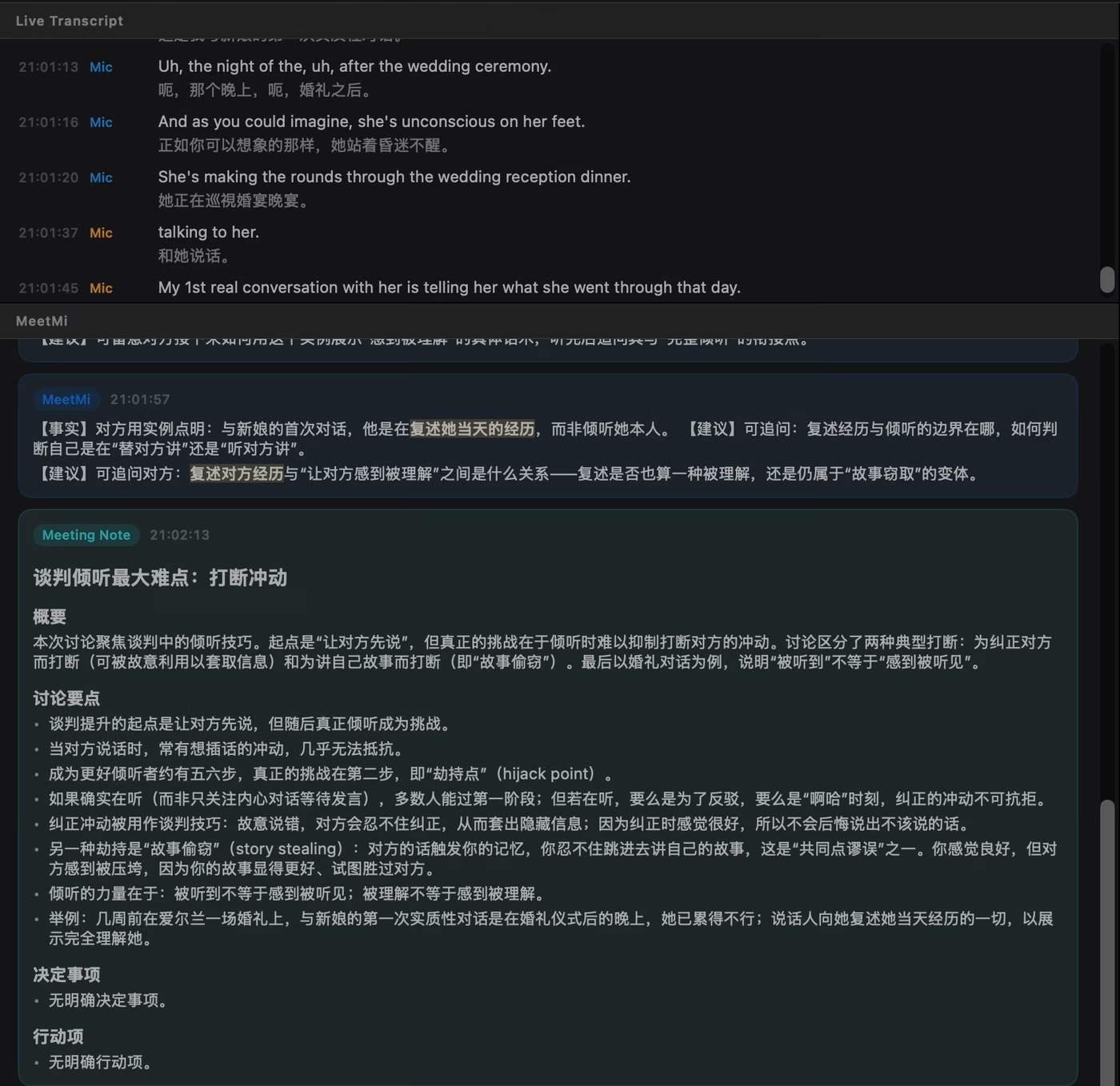
When the meeting language and the writing language differ, MeetMi can show each transcript line translated into the writing language underneath it. Translation runs on the device with Apple’s Translation framework; it is on by default and uses no credits.
More detail: Mac and iPhone, language downloads, and same-language pairs
Subtitles work on Mac and iPhone. Translated lines are kept in exports and in saved notes.
If Apple’s translation languages aren’t on the device yet, Apple shows its own download prompt. If the pair isn’t supported or the download doesn’t go through, MeetMi shows a notice and leaves subtitles off, while transcription and advice carry on. When both settings are the same language, for example a Mandarin meeting with Traditional Chinese writing, there is no subtitle line, and MeetMi does not convert between Simplified and Traditional.
Only the transcript is translated. The advice, analysis and notes are written directly in the writing language.
What does MeetMi tell you during the meeting?
MeetMi’s live advice arrives as short cards while people are still talking, no more often than every 20 seconds by default. Each card holds one to four points, and each point is tagged Fact, Advice, Risk or Action, in your writing language.
![MeetMi's advice cards on a Mac during a recorded talk, each with a time. Points are tagged [Risk], [Advice] and [Fact], and key phrases such as survivorship bias, copied the Mac, hindsight bias and unverified are highlighted.](/assets/img/mac-cards.avif)
More detail: timing, quiet spells, what advice looks at, and the switches
- How often. You can set the gap to 20, 25 or 30 seconds, and the MeetMi relay turns away advice requests that arrive less than 20 seconds apart. The gap is a minimum, not a schedule.
- When it stays quiet. MeetMi waits for enough new speech, and it is built to stay quiet when the latest stretch is only small talk, repetition or can’t be made out.
- What it looks at. The recent transcript, the latest background analysis, your
AGENTS.md, the meeting type, and anything you asked it to focus on. Live advice does not open the other files in your folder; it picks up what the analysis found there. - On demand. To ask for advice now, press the lightning button while the meeting is running. On a Mac, the Analyze Now menu command (⇧⌘D) does the same. It covers what was said since the last card, and it still can’t come sooner than 20 seconds after the previous one.
- No web search. Live advice never searches the web.
Live advice and background analysis each have their own switch, and both are on by default. You’ll find them in Settings → Analysis & Web (on iPhone, the Analysis tab), and on a Mac also in the Analysis menu and the window toolbar as MeetMi Auto Advice and Deep Analysis. With background analysis off, live advice no longer draws on the other files in your folder (your AGENTS.md still goes with every card), though your questions and the meeting notes still check them.
How does MeetMi’s background analysis work?
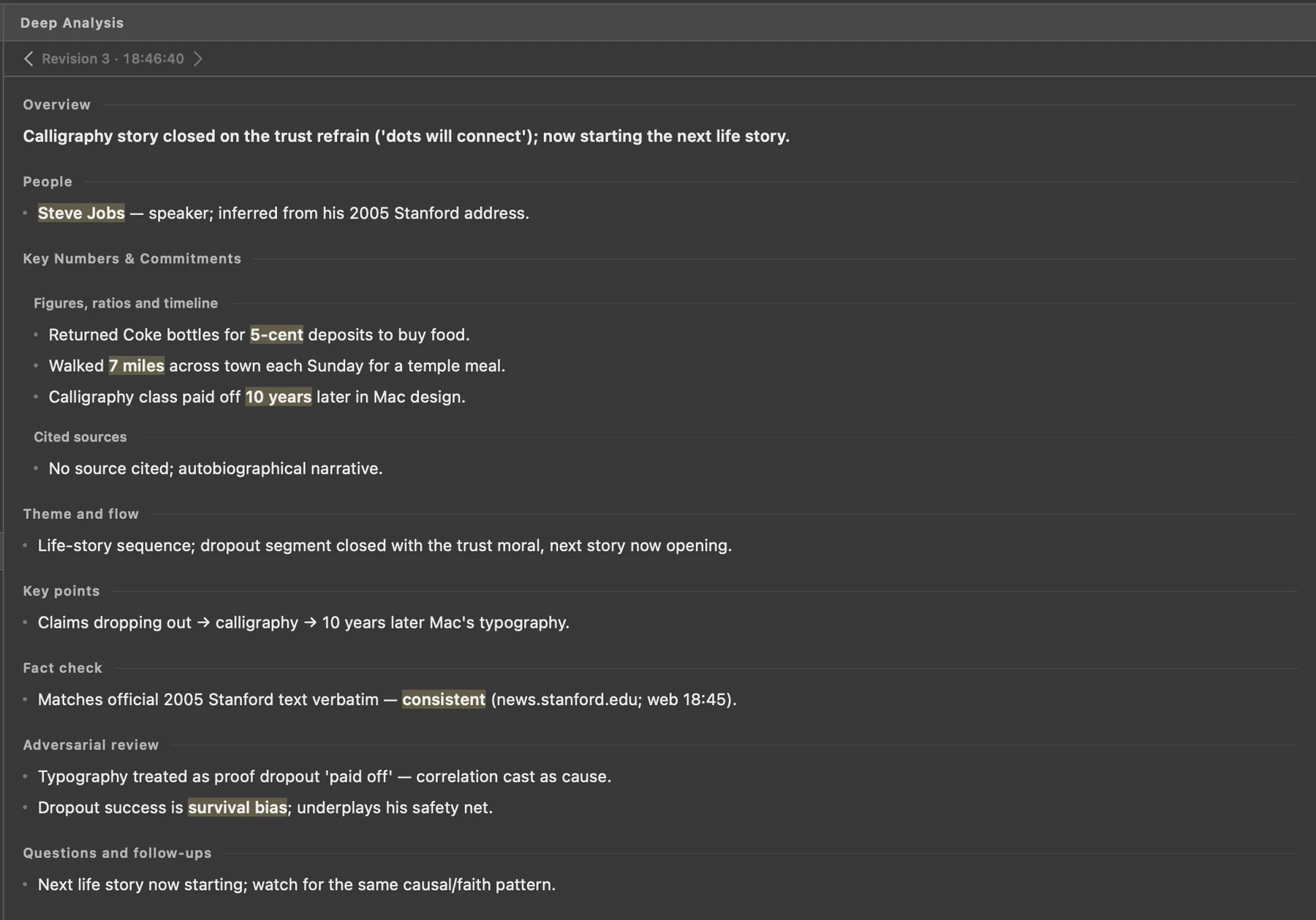
MeetMi’s background analysis keeps a running picture of the meeting: a one-line overview, the people named, key numbers and commitments, and up to five sections that depend on the meeting type. It runs every 3 minutes by default, and only when something new has been said.
More detail: sections by meeting type, new versions, your folder and the web
You can pick 1 to 5 minutes in Settings. The sections follow the type, or your AGENTS.md for Custom. A negotiation tracks both sides’ positions and open issues, and a video, lecture or podcast gets a fact check and an adversarial review. You can ask MeetMi to add, rename, move or remove sections, and undo the change.
Each new version rewrites the previous one and folds in what was said since. MeetMi is told to make it tighter rather than longer, and earlier versions stay one click away. The analysis checks your folder when it has material and, with your separate consent, can search the web.
Can you ask MeetMi questions during the meeting?
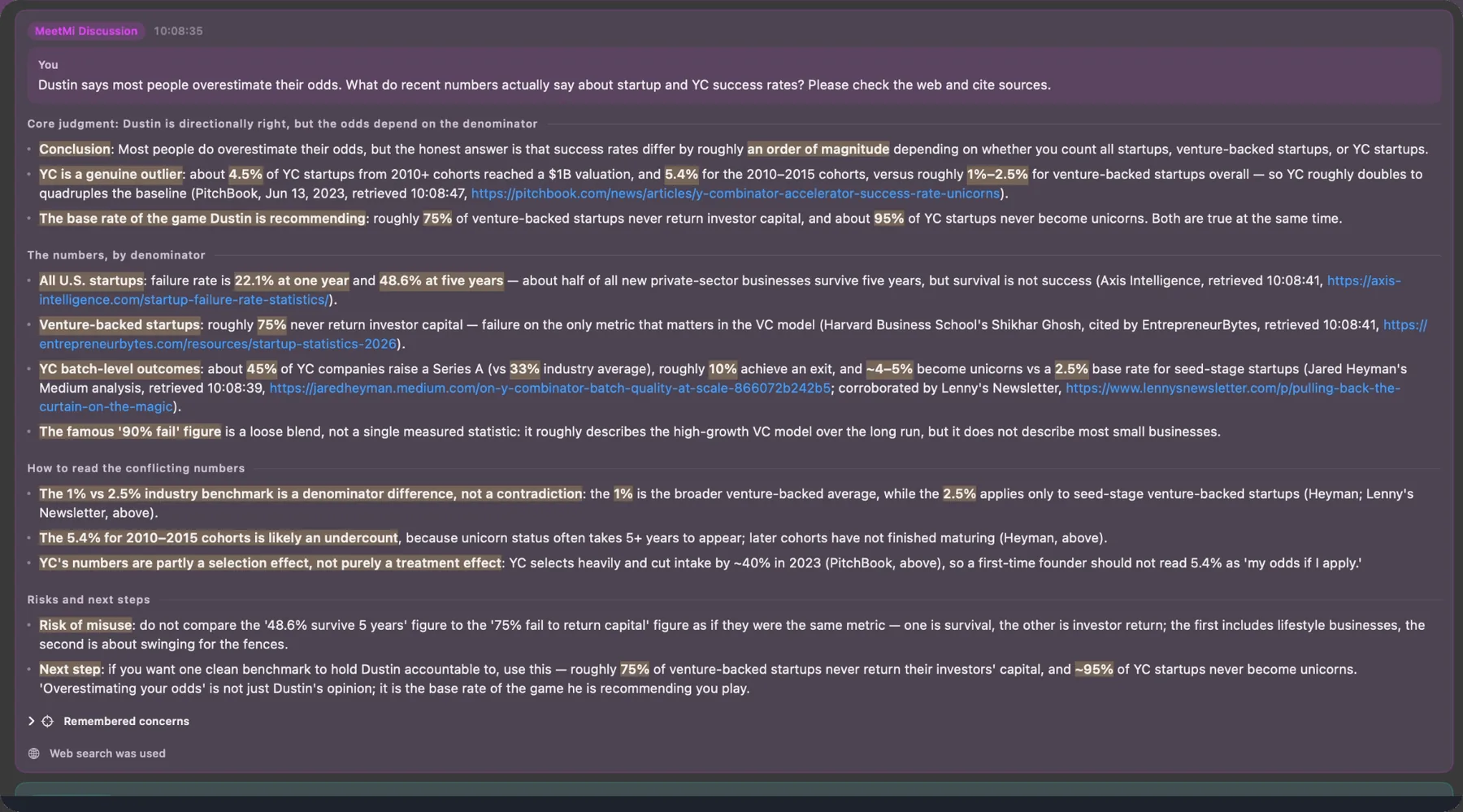
Yes. Type into Discuss with MeetMi before a meeting, during it, while it is paused or after it ends. MeetMi answers with the whole transcript so far, the latest analysis and your recent exchanges in view, and when your folder has material it usually checks the folder before answering.
More detail: telling MeetMi what to watch
You can also tell MeetMi what to keep an eye on. For the rest of that meeting, it carries this into live advice, the analysis and the notes. These focus notes belong to one meeting. Starting a meeting clears them, including any you gave before pressing Start Meeting, so tell MeetMi what to watch once the meeting is running.
Can MeetMi search the web?
MeetMi searches the web only if you turn it on. Web search is off by default and needs its own consent, separate from cloud AI, and only the background analysis and your questions can search.
More detail: Exa, retention, links and credits
Searches go through the MeetMi relay to Exa, which receives only the search terms and the addresses of pages to read. Exa may keep search terms, so web search does not have the zero-retention guarantee of the cloud AI route. That is why MeetMi asks separately.
Live advice and meeting notes never search the web, and the MeetMi relay refuses search requests from them. When MeetMi uses the web, it is told to give the link and when the page was fetched. Each search and each page it reads costs credits.
What happens when the meeting ends?
MeetMi saves the meeting to your history when you press End Meeting, even while it is paused, as long as something was transcribed. Press End Meeting before you quit the app: quitting in the middle of a meeting does not save it.
More detail: Pause and Resume
MeetMi lets you pause a meeting or end it. Pause stops the listening and all automatic AI and keeps the transcript and analysis; Resume carries on the same meeting in the same language.
How are the meeting notes written?
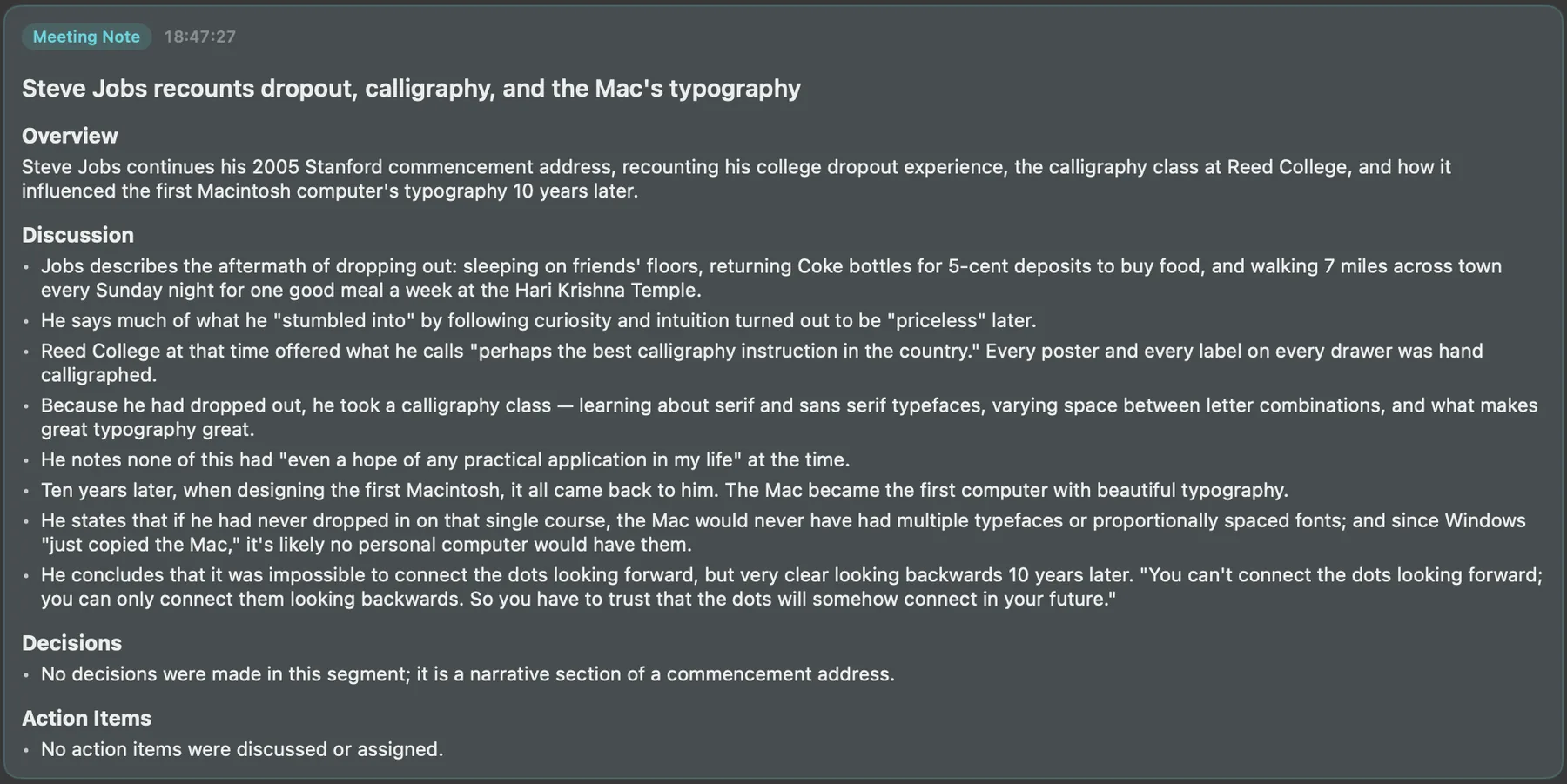
When you end a meeting, MeetMi tries to write the notes if cloud AI is available and at least three lines were transcribed. The notes open with a one-line title, followed by four sections: Overview, Discussion, Decisions and Action Items.
More detail: what the notes draw on, where they are saved, and without cloud AI
The notes are drafted from the last 24,000 characters of the transcript, together with the running analysis and anything you asked MeetMi to focus on. When your folder has material, the notes check it first. The title says what the meeting settled or where it got stuck. Every meeting type uses the same four sections, and AGENTS.md doesn’t change them. MeetMi is told to copy numbers, dates and names exactly, and to keep what was only mentioned apart from what was decided.
MeetMi saves the notes as a Markdown file with the full transcript appended, in a Meetings subfolder of your folder. If you didn’t pick a folder, the notes stay in MeetMi’s own storage and in its meeting history, and you can export them from there.
Without cloud AI (no subscription, no credit left, or no consent), a meeting ends with its transcript saved and no notes. You can reopen a past meeting and continue it later; the new transcript is added to the same record.
Export
MeetMi exports a meeting’s notes, analysis, advice and transcript as Markdown or plain text. Meeting history stays on each device; it does not sync between Mac and iPhone.
More detail: exporting on iPhone
On iPhone, Share / Save to Files opens the share sheet, where you can save the file to the Files app or send it on.
What does MeetMi send to the cloud, and what never leaves your device?
No bot joins your call, but MeetMi is not fully local. Speech recognition and subtitle translation run on your device, while live advice, analysis, answers and notes are written by cloud AI from the text. MeetMi never saves or sends audio; it sends only text, and only after you agree.
More detail: exactly what is sent, the route, your consent and your account
Never leaves your device: the audio.
Sent only after you agree to cloud AI, and only as text:
- the transcript
- your questions and what you asked MeetMi to focus on
- MeetMi’s own earlier replies and the running analysis
- your
AGENTS.md - what you type into the short form when you have AI draft your
AGENTS.md - the names and headings of files in your folder, and the passages the AI chooses to read
- web results, if you turned web search on
The route is the MeetMi relay, then OpenRouter, then only the zero-data-retention providers listed in the app, with no fallback to anyone else. The current policy names DeepSeek V4 Flash, served by DigitalOcean, Morph, CoreWeave or Together. The model and providers are set on the server and can change. Before anything is sent, the Technical detail section of the data notice shows the current ones.
If the model, the providers or the kinds of data sent change, your earlier agreement stops counting and cloud AI stays off until you agree again. On a Mac, and on iPhone from version 1.0.1, MeetMi asks at your next meeting. On iPhone 1.0, you agree again in Settings → Apple Service. You can withdraw your agreement in Settings at any time.
No account. There is nothing to sign up for. To check your subscription, the MeetMi relay receives Apple’s signed transaction and a random app token, and keeps your credit under an opaque ID. It never receives your Apple ID or email.
The full detail is in the privacy policy.
How do MeetMi credits work?
MeetMi uses credits to measure cloud AI use; on-device transcription and translation use none. New subscribers get a one-week free trial with 1,000 credits, and after the trial each monthly period includes 4,500 credits.
More detail: what counts, renewals, Mac and iPhone, and running out
The text sent to the AI and the text it generates both count, and each web search and each web page it reads costs a fixed number of credits.
- The trial is once per Apple Account: if you took it on the Mac, there is no second one on iPhone.
- The allowance resets when the subscription renews, and unused credits don’t carry over.
- MeetMi doesn’t sell extra credits.
- One subscription covers Mac and iPhone signed in to the same Apple Account, and both draw on the same credit balance.
- While you’re subscribed, Settings → Apple Service shows the credit used this period, when it resets, and an estimate of the meeting hours left at your current settings. It is an estimate, and questions and discussions use extra.
If the subscription lapses or the credits run out, transcription, translation, meeting history and export keep working, and a meeting in progress keeps transcribing. New AI work stops: advice, analysis, answers and meeting notes. See pricing.
MeetMi at a glance
| Topic | Details |
|---|---|
| What it is | An AI meeting assistant for Mac and iPhone that helps while the meeting is happening |
| Bot in the call | None: MeetMi listens on your own Mac or iPhone |
| Mac | macOS 26 or later on Apple silicon (M1 or newer); not Intel Macs |
| iPhone | iOS 26 or later; iPhone only, no iPad layout |
| Price | $9.99 a month in the United States; the App Store shows your local price |
| Trial | One week free for new subscribers, with 1,000 credits; then 4,500 credits a month |
| Free without a subscription | On-device transcription, subtitle translation, meeting history and export |
| Transcription | On the device, with Apple’s speech recognition; 13 options covering 10 languages; automatic detection among English, Mandarin and Japanese |
| Live advice | With the subscription: cards tagged Fact, Advice, Risk or Action, at most every 20 seconds by default |
| Background analysis | With the subscription: updated every 3 minutes by default (1 to 5 in Settings) when something new was said |
| Writing languages | English, Simplified Chinese, Traditional Chinese, Japanese, Korean, German, French, Spanish, Portuguese, Italian; a new install starts in Simplified Chinese up to Mac 1.0.1 and iPhone 1.0, and from Mac 1.0.2 and iPhone 1.0.1 on “Follow System”: English, or Simplified Chinese when that is the device’s first language |
| Audio on Mac | System audio + microphone (default), microphone only, or system audio only |
| Audio on iPhone | Microphone by default; from version 1.0.1 on iOS 27, system audio instead (it can’t hear calls) |
| Audio kept | None: raw audio is never saved or uploaded |
| Speakers | Not identified; lines are tagged Mic or System |
| Account | None; the App Store subscription is the only thing you buy |
| Cloud AI route | Only after consent: MeetMi relay → OpenRouter → the zero-data-retention providers shown in the app |
| Web search | Off by default; its own consent; through Exa |
| Notes | Written by cloud AI when you end a meeting (needs the subscription); Markdown with the transcript appended, in a Meetings subfolder of your folder if you picked one |
| Export | Markdown or plain text |
| Interface | English or Simplified Chinese |
| Regions | 174 countries and regions as of September 2026; not mainland China |
What needs the subscription, and what needs a network?
| Feature | Subscription | Network |
|---|---|---|
| Starting meetings and transcription | No | Only to download a speech model once |
| Subtitle translation | No | Only to download Apple’s translation languages once |
| Meeting history and export | No | No |
| Live advice, analysis, questions and notes | Yes | Yes |
| Web search | Yes, plus its own consent | Yes |
Drafting AGENTS.md with AI |
Yes | Yes |
| Subscribing and restoring purchases | — | Yes |
Everything marked Yes under Subscription also needs remaining credit and your agreement to cloud AI.