
Live meeting transcription on your Mac
Updated
MeetMi is a meeting transcription app for Mac that turns speech into text as people talk, using Apple’s on-device speech recognition. It hears your microphone and everything the Mac plays, so it transcribes online meetings without a bot joining the call, as well as meetings in the room. Raw audio is never saved or uploaded, and transcription is free.
MeetMi is built for meetings, not dictation. It keeps each meeting as one record you can search and export, and with AI credits it adds live advice, a running analysis and notes on top of the transcript. The same app runs on iPhone.
How does MeetMi transcribe a meeting on a Mac?
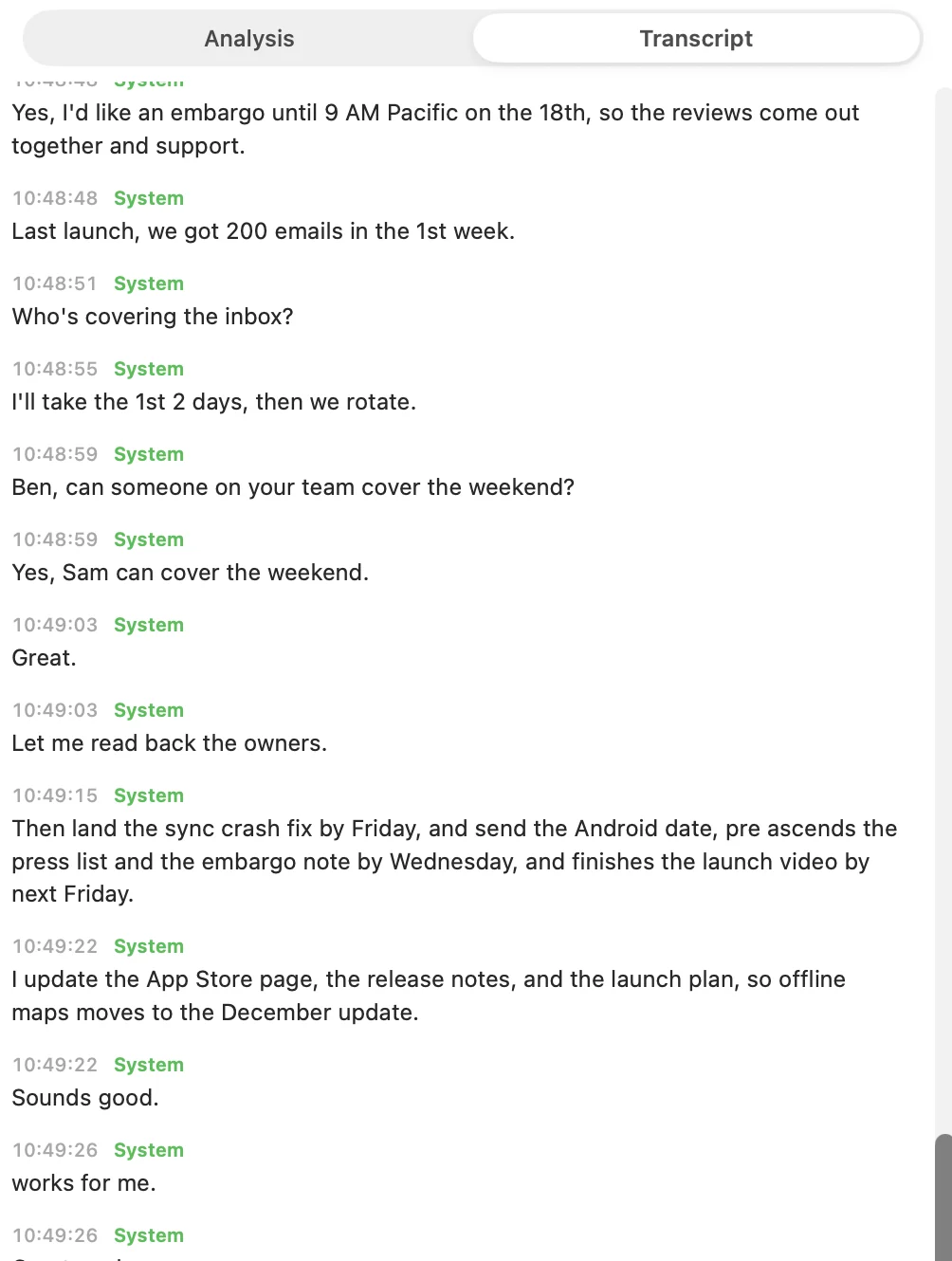
Press Start Meeting and MeetMi transcribes as people talk, with Apple’s speech recognition running on your Mac. Each line appears in the Transcript tab with its time and where the sound came from, and the current line appears as a live caption under the advice.
More detail: which Macs, the one-time download and the app window
MeetMi for Mac needs macOS 26 or later on a Mac with Apple silicon (M1 or newer). It does not run on Intel Macs.
MeetMi transcribes with Apple’s on-device speech models. When you open MeetMi, it downloads any speech models your settings need that aren’t on your Mac yet. That one-time download requires an internet connection. After that, transcription works offline.
MeetMi keeps listening while another app is in front. Closing the window does not end the meeting: bring it back from the Dock or with Window → MeetMi Window (⌘0). You can also shrink MeetMi to a compact window about a third of the screen wide, which shows one thing at a time (advice, analysis or transcript), and pin it above your other windows.
Can it transcribe online meetings without a bot?
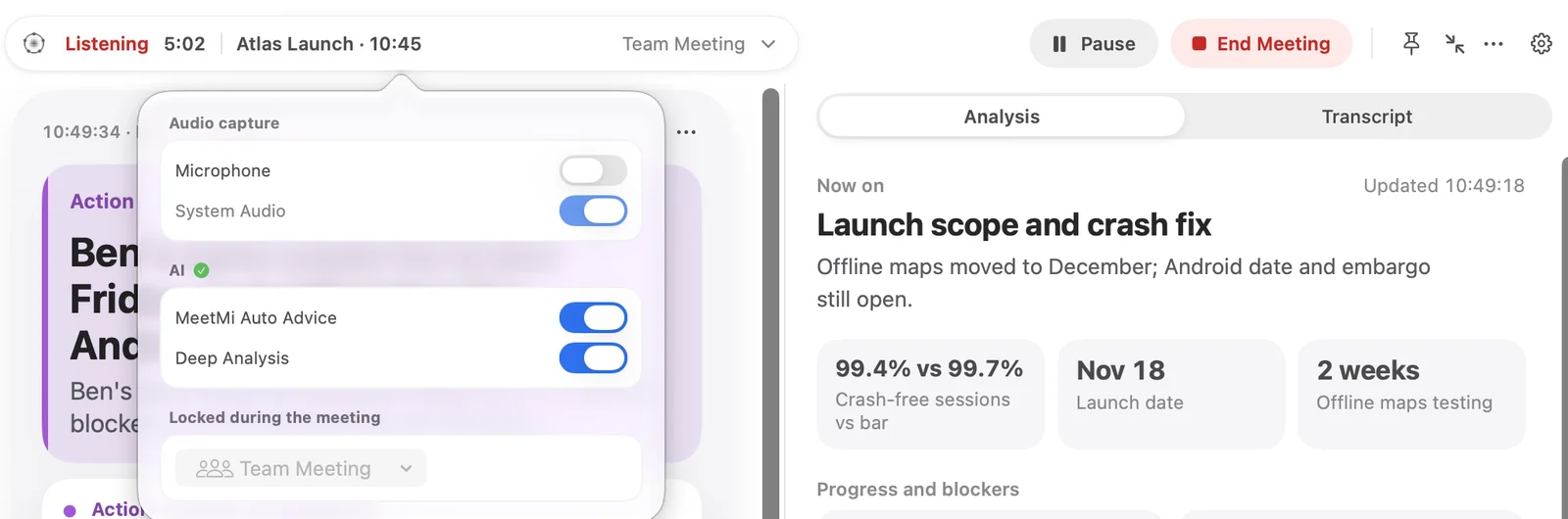
Yes. MeetMi hears your microphone and everything the Mac plays, from any app, so it transcribes everyone else on an online call with no bot joining and nothing to install in your meeting app. The two switches, Microphone and System Audio, are both on by default.
More detail: permissions, what system audio includes and which switch to use
Permissions. For MeetMi to hear system audio, macOS asks for the Screen & System Audio Recording permission, in System Settings → Privacy & Security. After you turn on MeetMi there, quit and reopen the app for system audio to start working. If you decline while both switches are on, MeetMi carries on with the microphone alone and shows a warning. If only the microphone is on, MeetMi never asks for this permission.
What system audio includes. System audio is mixed together (MeetMi’s own sound excluded). Because MeetMi hears the whole mix, other sounds playing at the same time, such as notifications, music or a second video, are picked up too.
Which switch. Set the two switches before a meeting in Settings → Meeting, or in the capsule at the top of the window. At least one switch has to stay on, and turning one on or off during a meeting doesn’t interrupt the other. For people in the room, use the microphone only. For a video or a talk playing on the Mac, use system audio only: picking the Video / Lecture / Podcast meeting type turns the microphone off and leaves system audio on.
Rules on recording and transcription differ by place and workplace, so let the people you meet with know you’re using MeetMi when those rules require it.
Which languages can MeetMi transcribe?
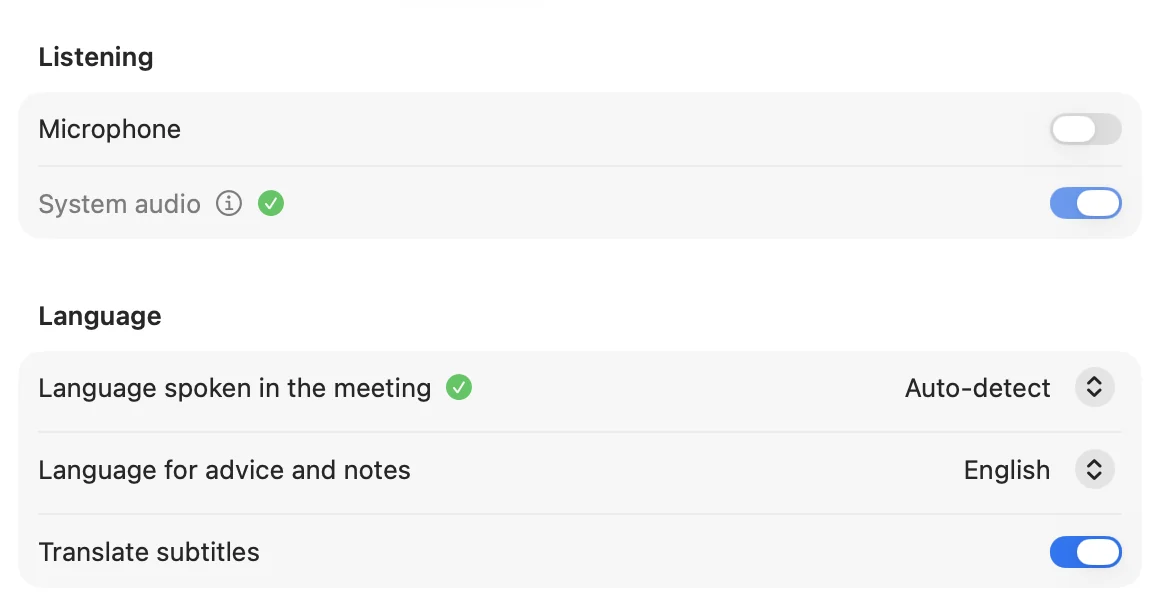
MeetMi offers 13 transcription options covering 10 languages: English (US, UK or India), Mandarin (Simplified or Traditional), Cantonese, Japanese, Korean, German, French, Spanish (Spain), Portuguese (Brazil) and Italian. Each meeting is transcribed in one language, used for both the microphone and system audio.
More detail: automatic detection, headphones and meetings that switch languages
The default, Auto-detect, chooses only among English, Mandarin and Japanese. At the start of the meeting MeetMi runs the three side by side on the same audio and keeps the one that transcribes with the most confidence, usually within about 20 seconds of the first words. While it decides, it listens to the microphone only. With headphones on, the microphone hears only you, so choose the meeting language yourself.
For any other language, choose it in Settings → Meeting. Choosing the language yourself is also faster and more accurate.
Is the audio recorded or uploaded?
No. The sound goes straight into Apple’s speech recognition on your Mac, and only the text is kept. Raw audio is never saved or uploaded. Once the speech model is on the Mac, transcription works without an internet connection.
More detail: what cloud AI gets
Live advice, analysis, answers to your questions and notes are written by cloud AI from the text, and nothing goes to cloud AI until you accept the data notice. You can choose “Local Transcription Only” instead. Audio is never sent. The privacy policy lists what goes where.
Can it translate the transcript as you go?
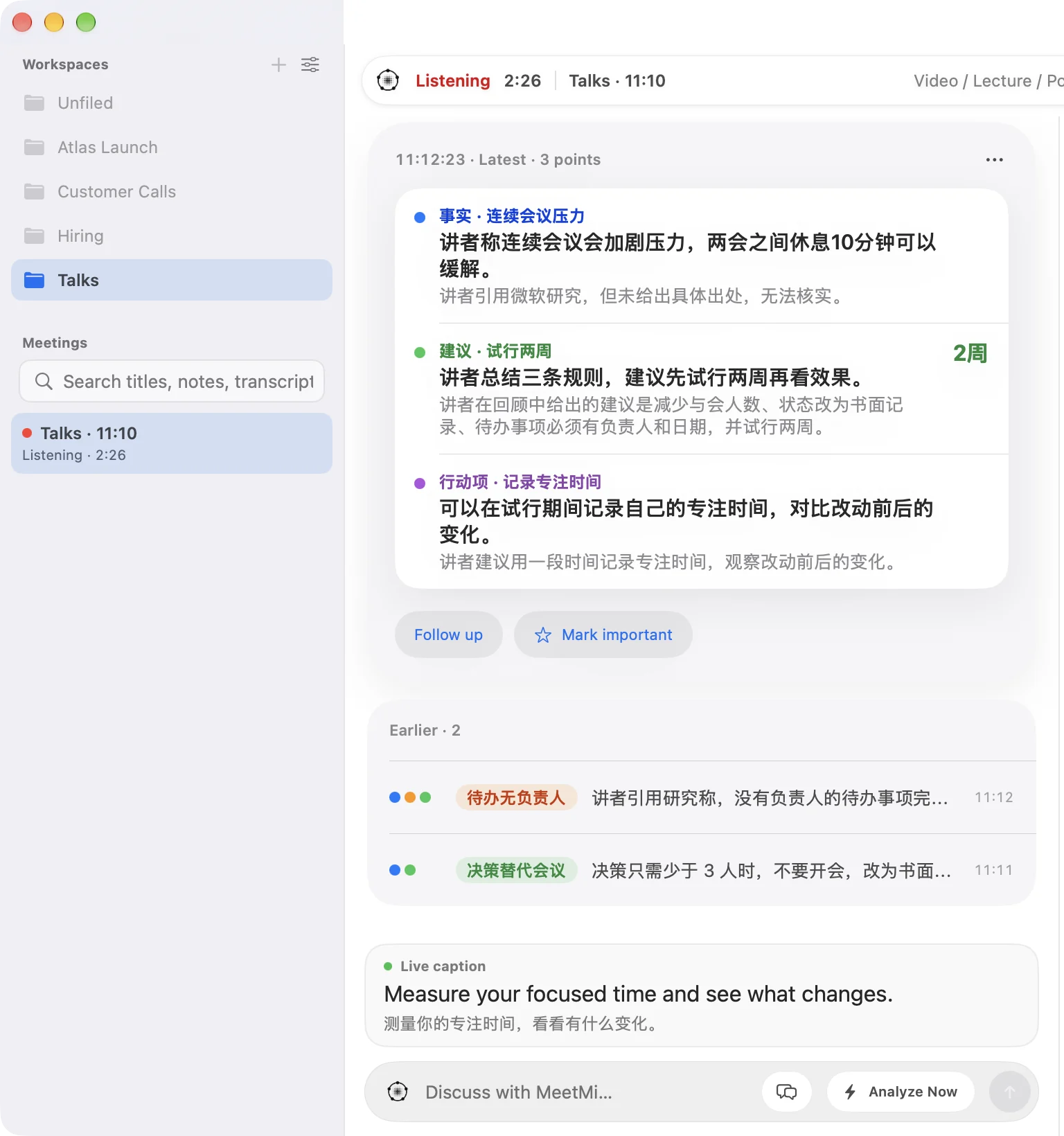
Yes, when the meeting language differs from the language for advice and notes. MeetMi then shows a translated subtitle under each transcript line. Translation runs on your Mac with Apple’s Translation framework; it is on by default and uses no credits.
More detail: language downloads and same-language pairs
If Apple’s translation languages aren’t on the Mac yet, Apple shows its own download prompt. If the pair isn’t supported or the download fails, MeetMi shows a notice and leaves subtitles off, while transcription carries on. When both language settings are the same, there is no subtitle line. Translated lines are kept in exports and in saved notes.
What happens to the transcript after the meeting?
When you end the meeting, MeetMi saves it with your other meetings, transcript included. You can search titles, notes and transcripts, continue a meeting later, and export the transcript as Markdown or plain text.
More detail: notes, your own folder and iPhone
End the meeting before you quit the app: quitting in the middle of a meeting does not save it.
With AI credits, MeetMi also writes the notes when you end the meeting: a one-line title, then Overview, Discussion, Decisions and Action Items. If you’ve given MeetMi a folder of your own material, it saves the notes there as a Markdown file in a Meetings subfolder, with the full transcript appended. Without cloud AI, the meeting is saved with its transcript and no notes.
Meeting history syncs between your Mac and iPhone through your own iCloud, not through MeetMi’s servers.
Is MeetMi a dictation app?
No. A dictation app turns your own voice into text in whatever app you’re typing in. MeetMi transcribes a whole meeting in its own window, the other side of an online call included, and keeps it as one record. With AI credits it also gives live advice while people talk, keeps a running analysis, answers your questions and writes the notes.
Real-time advice shows what MeetMi does with the transcript during the meeting.
Does it work on iPhone too?
Yes. MeetMi for iPhone listens through the microphone and keeps transcribing when you lock the screen, which works well for meetings in the room. On iOS 27 it can also transcribe what the phone itself plays, such as a video or a lecture. MeetMi is one app on the App Store for both Mac and iPhone, and your meeting history syncs between them through iCloud.
What does it cost?
Transcription is free: it runs on your Mac and uses no credits. Subtitle translation, meeting history and export don’t use credits either. Live advice, analysis, answers to your questions and notes use AI credits: every Apple Account gets 250 free credits a week, shared by Mac and iPhone. The optional subscription comes in three plans, all with web search: Standard with 2,500 credits a month for $4.99, Pro with 6,000 for $9.99 and Max with 15,000 for $19.99, in the United States (the App Store shows your local price). See pricing.
How MeetMi works follows a meeting from Start to notes, and How MeetMi compares puts it next to Otter, Fireflies and Granola.